
claude --dangerously-skip-permissions: what it does, auto mode and safer options (2026)
What Claude Code's --dangerously-skip-permissions flag (bypassPermissions) really skips, what it still blocks, and the safer ways to stop the prompts: auto mode, allow/ask/deny rules, the sandbox, hooks and containers. Plus effort levels, fast mode, rewind and the admin settings that turn bypass off. With real screenshots.
claude --dangerously-skip-permissions is the flag people reach for after the twentieth "Allow this command?" prompt. It works: Claude Code stops asking. It also removes the one thing standing between an agent and every file, credential and command your user account can touch.
This guide explains exactly what the flag does and does not skip, then walks through the options Anthropic has built since, which remove most prompts without removing the safety net: auto mode, permission rules, the sandbox and hooks. It also covers the other controls that decide how an agent behaves, such as effort levels, fast mode and rewind, and the settings an administrator uses to turn bypass off for a whole company.
The screenshots are from our own terminal, running Claude Code v2.1.307 on a small demo repository. Facts are checked against Anthropic's Claude Code documentation on 27 October 2026.
The short answer
| Question | Answer |
|---|---|
| What it is | A startup flag, equal to --permission-mode bypassPermissions |
| What it skips | Every routine permission prompt, including writes to .git and .claude |
| What still applies | Deny rules, ask rules, questions Claude asks you, removal of critical paths |
| Where it is fine | A disposable container or VM with no secrets and limited network |
| Where it is not | Your own laptop, a shared server, anything with production credentials |
| The usual better choice | Auto mode, plus a few allow and deny rules |
| Can admins block it | Yes, permissions.disableBypassPermissionsMode: "disable" in managed settings |
What --dangerously-skip-permissions actually does
Claude Code has a set of permission modes that decide what the agent may do without asking. The flag starts a session in the most permissive one, bypassPermissions. The two commands below are equivalent:
claude --dangerously-skip-permissions
claude --permission-mode bypassPermissions
The CLI's own help text is blunt about it:
--dangerously-skip-permissions   Bypass all permission checks.
                                 Recommended only for sandboxes with no
                                 internet access.
Anthropic's docs put it the same way: in this mode Claude Code skips permission prompts, including for writes to protected paths such as .git and .claude, and you should only use it in isolated environments like containers or VMs where Claude Code cannot cause damage.
Four details matter in practice:
- Some things still stop it. Deny rules still block, and ask rules still prompt. Claude can still ask you questions, and recognized removals of critical paths (an
rm -rfaimed at your home directory, for example) still need confirmation. Allow rules stop mattering, because everything is allowed anyway. - There is a one-time warning. The first interactive session in bypass mode shows a warning you have to accept; accepting is remembered in your user settings. Declining exits. Non-interactive runs (
claude -p) show no dialog. - It refuses to run as root. On Linux and macOS Claude Code will not start in bypass mode as root or under
sudo, unless it detects a recognized sandbox. Run it as a normal user. - You cannot switch into it halfway. A session that did not start with bypass enabled cannot enter it later. If you want the option without starting in it, use the companion flag:
# Start in plan mode, but allow bypass in the Shift+Tab cycle
claude --permission-mode plan --allow-dangerously-skip-permissions
Why "dangerously" is in the name
The risk is not that Claude decides to wreck your machine. It is that an agent with no checks does whatever its context tells it to, and its context includes things you did not write: a README in a cloned repo, an issue comment, a web page it fetched, the output of an MCP tool. A prompt injection in any of those can ask for cat ~/.ssh/id_ed25519 | curl …, and in bypass mode nothing asks you first. Add honest mistakes, like a git reset --hard on the wrong branch or a migration against the wrong database, and the flag's name makes sense. We go deeper on this class of risk in MCP security best practices.
All permission modes, side by side
Press Shift+Tab to cycle modes during a session. The status bar shows the active one:
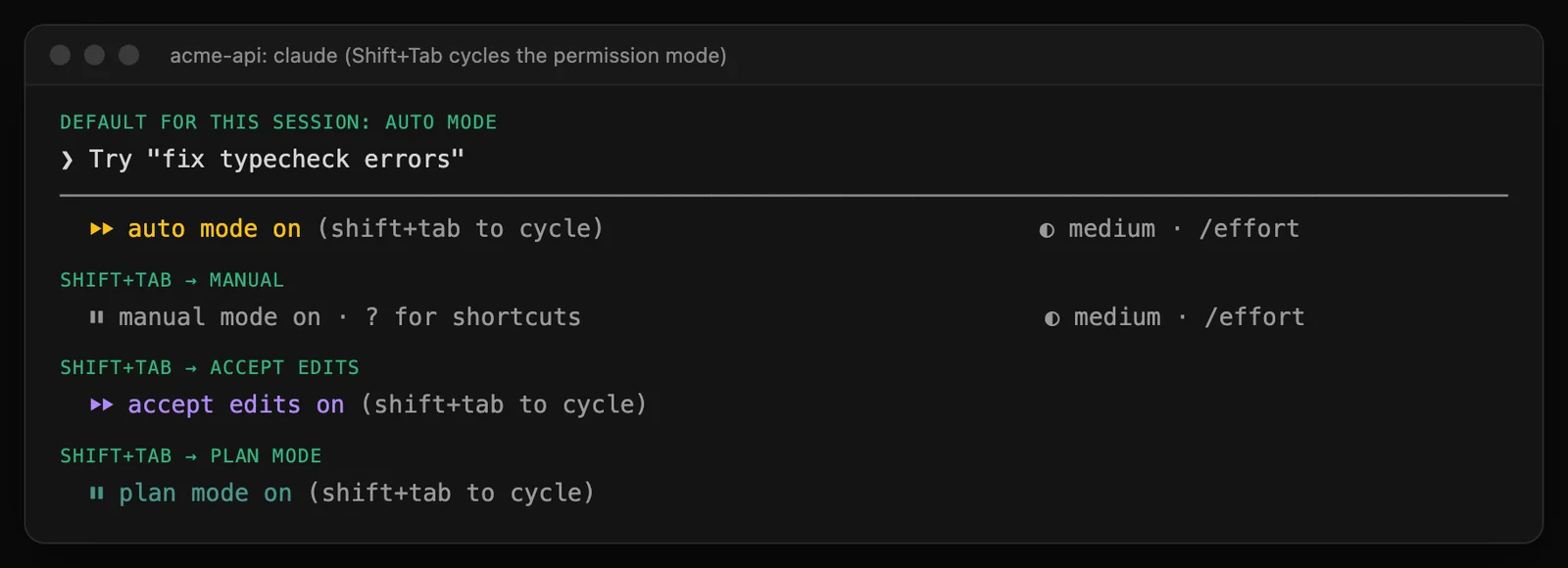
Shift+Tab in Claude Code v2.1.307. This session started in auto mode, the default for interactive sessions on current versions.
| Mode | Config value | What runs without asking | Use it for |
|---|---|---|---|
| Manual | default (CLI also accepts manual) | Reads; everything else prompts on first use | Unfamiliar repos, learning what the agent does |
| Accept edits | acceptEdits | File edits and common file commands (mkdir, touch, mv, cp) inside the project | Refactors where you review the diff afterwards |
| Plan | plan | Reads and read-only commands; no source edits | Exploring and agreeing on an approach first |
| Auto | auto | Most actions; a classifier checks shell commands and network requests first | Everyday work on a real machine |
| Don't ask | dontAsk | Only pre-approved tools; anything that would prompt is denied | Locked-down scripts and CI |
| Bypass | bypassPermissions | Everything except the exceptions above | Disposable containers and VMs only |
dontAsk and bypassPermissions are not in the Shift+Tab cycle by default; you choose them at startup. To set a default for yourself, put it in ~/.claude/settings.json:
{
  "permissions": {
    "defaultMode": "acceptEdits"
  }
}
Note that auto and bypassPermissions only take effect as defaultMode from your user settings or managed settings, not from a project's .claude/settings.json. A cloned repository cannot quietly switch your agent into bypass mode.
Auto mode: the safer way to stop the prompts
Auto mode is what most people actually want when they reach for the dangerous flag. Claude works without routine prompts, but a separate classifier model reviews each shell command and network request before it runs. It blocks actions that go beyond what you asked for, touch infrastructure it does not recognize, or look driven by hostile content.
By default, the classifier blocks things like:
curl … | bashand other remote code execution- sending sensitive data to external hosts
- production deploys and database migrations
- force pushes,
git reset --hard,terraform destroy - granting IAM permissions or mass deletion in cloud storage
And it lets through ordinary work: file operations in the project, installing dependencies from a lock file, read-only HTTP requests and pushing to a branch of the current repository.
Availability. Auto mode works on every plan. On Team and Enterprise it is on by default and an admin can turn it off. It needs a recent model: on the Anthropic API that means Opus 4.6 or later, Sonnet 4.6 or later, Haiku 5.5 or a Fable model. In current versions it is the starting mode for interactive terminal and VS Code sessions; if it is unavailable, the session starts in Manual instead.
Turning it on. Shift+Tab until the status bar says auto mode on, start with claude --permission-mode auto, or set "defaultMode": "auto" in your user settings. The old --enable-auto-mode flag has been removed. When you are in Manual or Accept edits, Bash prompts also offer "Yes, and switch to auto mode".
Tuning it. The classifier's rules are plain sentences, and you can see and extend them in /permissions under the Auto mode tab:
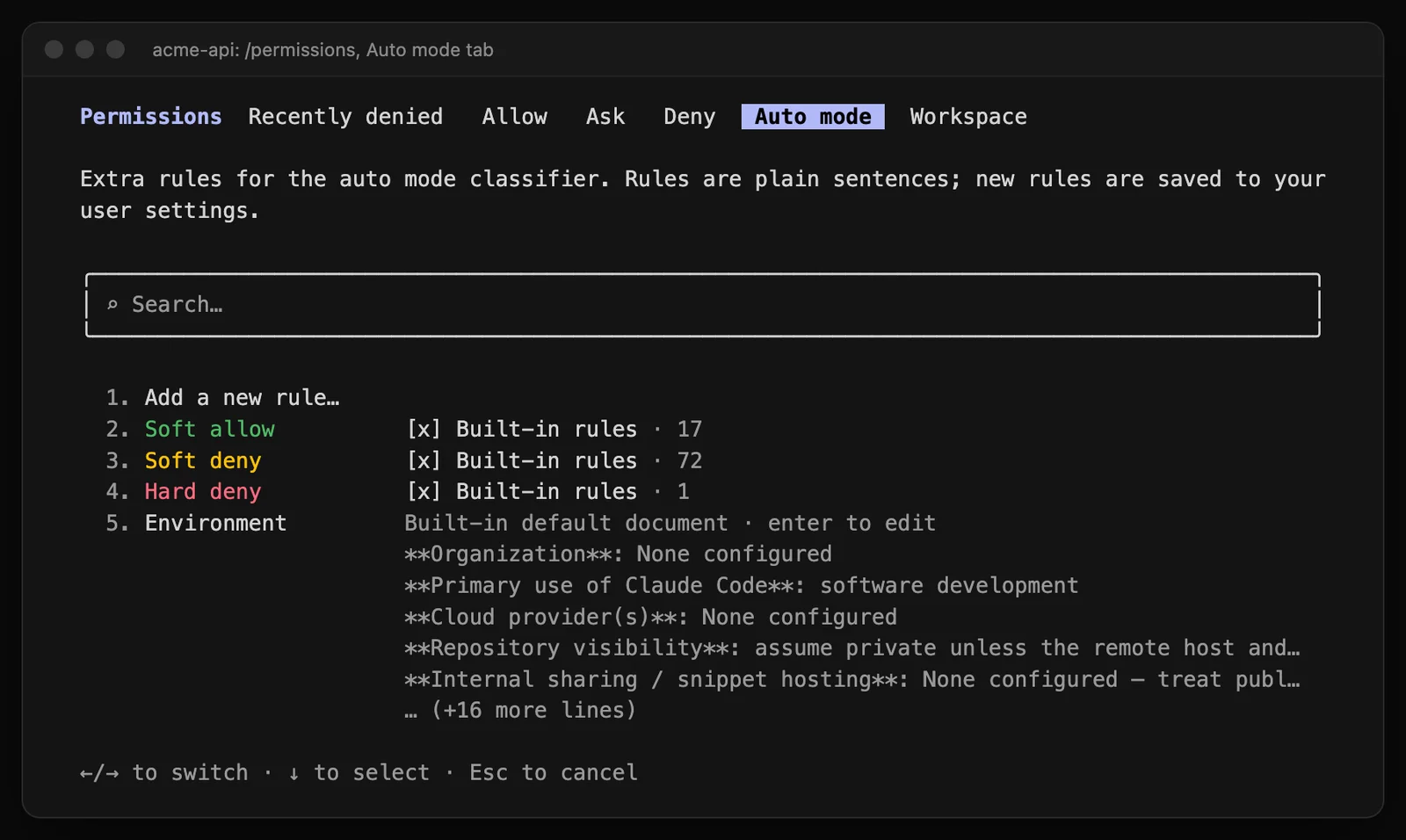
Our demo session: 17 built-in soft-allow rules, 72 soft-deny rules and one hard-deny rule, plus an environment document the classifier reads.
The most useful thing to add is environment context, so the classifier knows which hosts and repositories are yours. In ~/.claude/settings.json:
{
  "autoMode": {
    "environment": [
      "$defaults",
      "Source control: github.com/acme-corp and all repos under it"
    ]
  }
}
Keep "$defaults" in the list, or your entry replaces the built-in defaults for that section. The autoMode block is only read from user settings, managed settings or --settings, never from a project's settings file. A few CLI helpers exist for this: claude auto-mode defaults prints the built-in rules, claude auto-mode config shows the effective configuration and claude auto-mode critique reviews yours.
Two more things worth knowing. Explicit ask rules always prompt, even in auto mode, which is how you keep a human checkpoint (see below). And if the classifier blocks several actions in a row, auto mode pauses and falls back to prompting. Blocked actions appear in the Recently denied tab of /permissions, where you can retry them.
Allow, ask and deny rules
Rules work in every mode and are the precise tool: approve the commands you trust once, and block the ones you never want. They live in a settings file:
{
  "permissions": {
    "allow": ["Bash(npm run test *)", "Bash(npm run lint)", "Bash(git diff *)"],
    "ask": ["Bash(git push *)", "Bash(gh pr create *)"],
    "deny": ["Read(./.env)", "Read(./secrets/**)", "Bash(curl *)"]
  }
}
This is the exact file in our demo repository, and this is how Claude Code shows it:
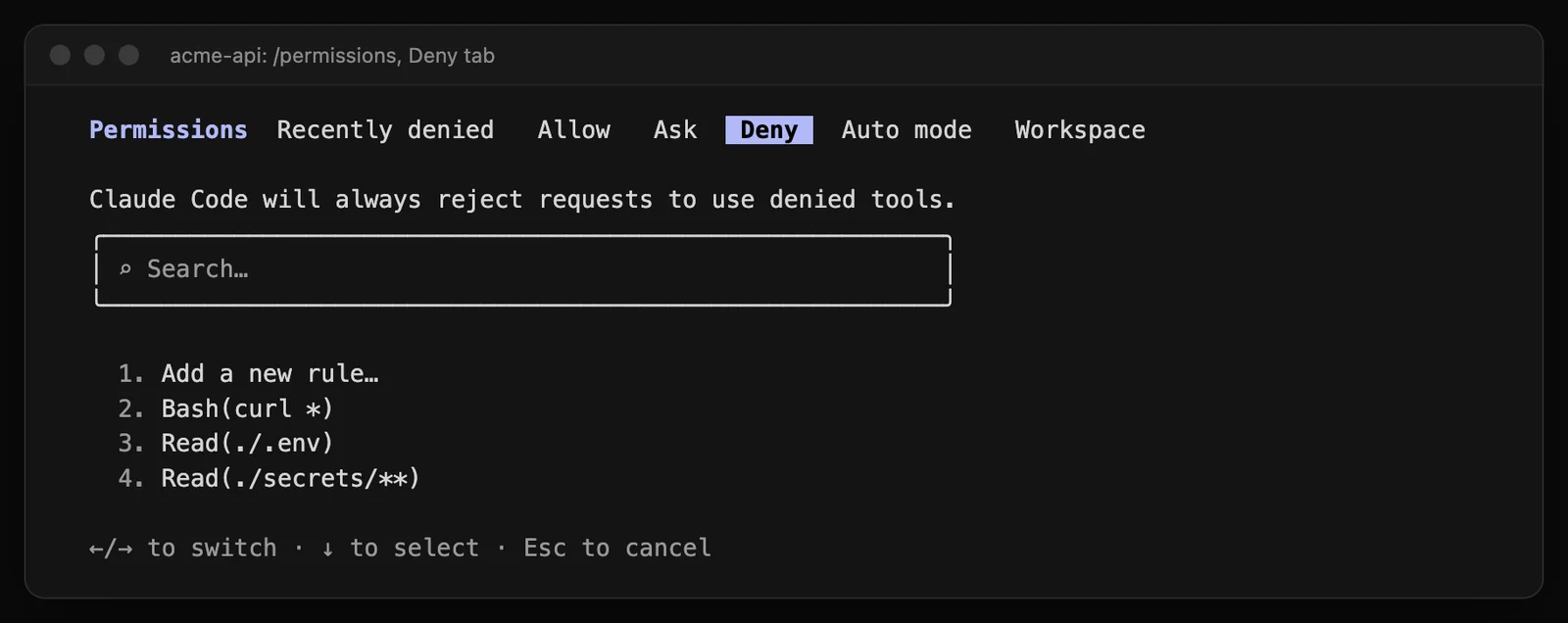
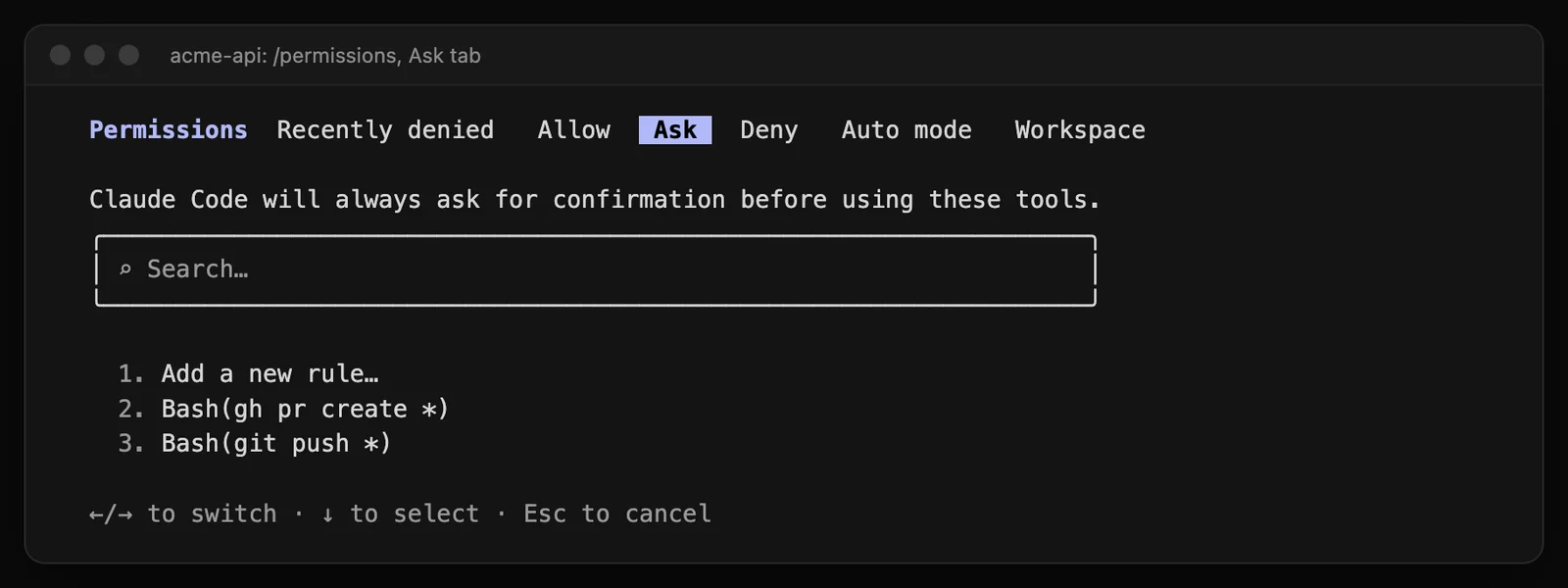
The same rules in /permissions: deny rules are always rejected, ask rules always prompt, in every mode.
How the syntax works:
Toolmatches every use of a tool;Tool(specifier)narrows it.Bash(npm run test *)matches any command that starts withnpm run test. The olderBash(npm run test:*)form still works, but the docs now use the space form.Read(./.env)is relative to the project,Read(~/.aws/**)to your home directory andRead(//etc/**)is an absolute path.WebFetch(domain:docs.example.com)limits fetches to a domain;*.example.comcovers subdomains.- MCP tools are matched by name:
mcp__github__create_pull_request, ormcp__githubfor the whole server.
Order matters. Rules are evaluated deny first, then ask, then allow, and the first match wins. A broad deny beats a narrow allow.
Where rules live. Settings are layered, and a deny at any level cannot be overridden by another level:
| File | Scope |
|---|---|
| Managed settings (from IT, MDM or the admin console) | Everyone in the organization; cannot be overridden |
.claude/settings.local.json | You, in this project (where "Yes, and don't ask again" is saved) |
.claude/settings.json | Everyone on the project, checked into git |
~/.claude/settings.json | You, in every project |
For a single session, --allowedTools and --disallowedTools do the same on the command line:
claude --allowedTools "Bash(git log *)" "Bash(git diff *)" "Read"
The pattern we use ourselves: auto mode as the baseline, deny rules for secrets, and ask rules for anything that leaves the machine, like git push and opening pull requests. The agent works uninterrupted, and a person still says yes before anything is published.
The sandbox: let commands run, but inside walls
Permission rules decide whether Claude may try something. The sandbox decides what a command can reach when it runs. Turn it on with /sandbox, or in settings:
{
  "sandbox": {
    "enabled": true
  }
}
With the sandbox on, shell commands run with OS-level isolation: they can write only to the project, the temp directory and folders you added, and they reach the network only through a proxy that checks an allowlist of domains. Protected files such as .claude, .mcp.json and your shell rc files stay write-protected. By default (autoAllowBashIfSandboxed), sandboxed commands run without a prompt, which is the other big reason prompts go away.
| OS | Support |
|---|---|
| macOS | Built in (Seatbelt), nothing to install |
| Linux and WSL2 | Needs bubblewrap and socat (sudo apt-get install bubblewrap socat) |
| WSL1 | Not supported |
| Native Windows | Commands run unsandboxed; use WSL2 |
Two settings worth knowing: sandbox.failIfUnavailable makes Claude Code exit instead of silently running unsandboxed, and sandbox.excludedCommands runs named commands outside the sandbox with your full access, so keep that list short.
Hooks: guarantees instead of hopes
Instructions in CLAUDE.md are advice the model usually follows. A hook is a guarantee. A PreToolUse hook runs before every matching tool call, and if it exits with code 2 the call is blocked, before permission rules are even evaluated and in every mode, bypass included. That makes hooks the right tool for rules like "never touch the production config" or "never push to main":
{
  "hooks": {
    "PreToolUse": [
      {
        "matcher": "Bash",
        "hooks": [{ "type": "command", "command": "./scripts/block-push-to-main.sh" }]
      }
    ]
  }
}
The script reads the tool call as JSON on stdin and exits 2 to block it. Our CLAUDE.md guide explains when an instruction belongs in CLAUDE.md and when it should be a hook.
When bypass mode is the right tool
There are legitimate uses: long unattended runs, batch refactors across hundreds of files, or an agent working through a backlog overnight. The answer then is not "never bypass", it is "bypass somewhere that cannot hurt":
- A container or VM with nothing worth stealing. No SSH keys, no cloud credentials, no browser profile, a fresh clone of the repo. A dev container works well. Run as a non-root user.
- Limited network. Allow the package registry and your git host, nothing else. Most of the real damage from an injected agent comes from exfiltration.
- A throwaway branch. Let the agent commit locally, and push and review from outside the container.
- A time and budget limit. In headless runs,
--max-turnsand--max-budget-usdcap how far it can go.
Headless and CI: -p, dontAsk and GitHub Actions
Non-interactive runs have their own rules. Since v2.1.302, claude -p with no mode starts in Manual, and anything that would need approval is denied unless an allow rule, a hook or a permission tool approves it. That is usually what you want in CI: list exactly what the job may do.
claude -p "Run the tests and fix any failures" \
  --permission-mode acceptEdits \
  --allowedTools "Bash(npm run test *)" "Bash(npm run lint)" \
  --permission-prompts none \
  --max-turns 20
--permission-prompts none denies anything that would prompt and tells Claude not to retry. --bare skips hooks, plugins, MCP servers, auto memory and CLAUDE.md discovery for a reproducible run (it needs an API key rather than a subscription login). For GitHub, anthropics/claude-code-action@v1 passes the same flags through its claude_args input; /install-github-app sets it up.
Two more flags are useful for untrusted input. --restricted removes the built-in tools that run code, ignores user and project settings, confines file tools to the working directories and refuses bypassPermissions. --safe-mode starts with every customization (CLAUDE.md, skills, plugins, hooks, MCP servers) disabled, which is the fastest way to tell whether a problem is your configuration.
Effort, thinking and fast mode
Permission modes decide what the agent may do. A second set of controls decides how hard it thinks and how fast it works.
Effort sets how much the model reasons before answering. Open the slider with /effort:
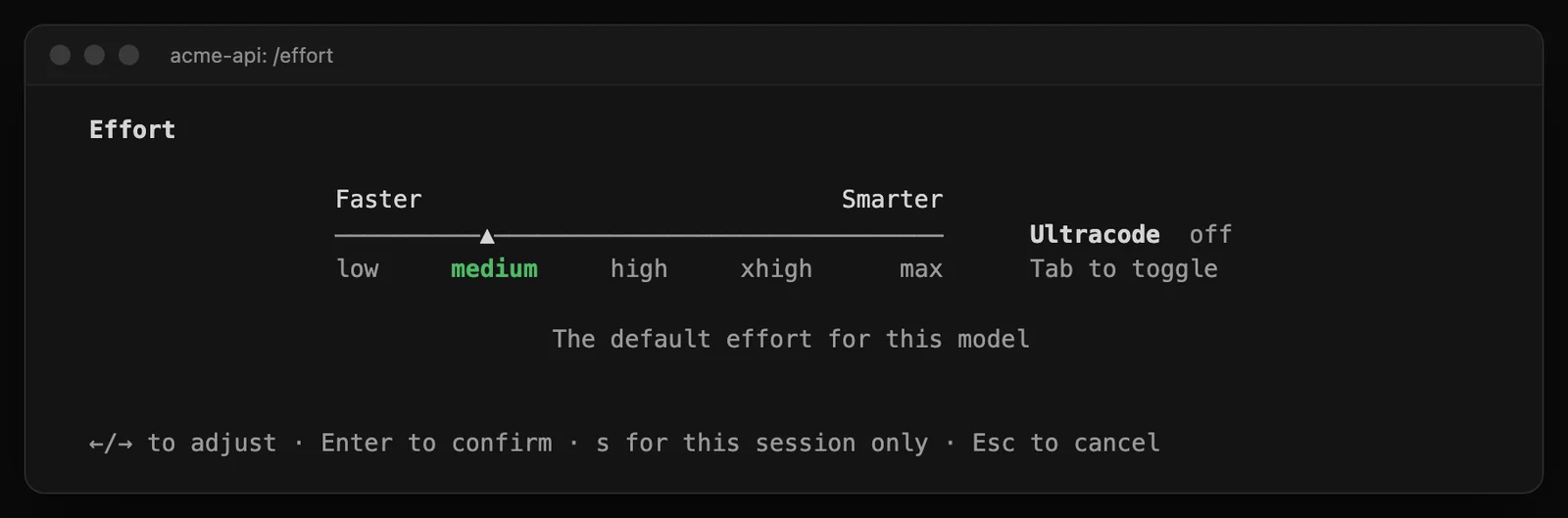
Medium is the default for Opus 5.5. Press s to apply a level to this session only.
| Level | When to use it |
|---|---|
low | Quick lookups, renames, small edits |
medium | Everyday work; the default on Opus 5.5, Sonnet 5.5 and Haiku 5.5 |
high | Tricky bugs, unfamiliar code; the default on most other supported models |
xhigh | Hard design and debugging problems |
max | The hardest problems, when time and usage do not matter |
Set it with /effort <level>, claude --effort high, the CLAUDE_CODE_EFFORT_LEVEL environment variable, or effortLevel in settings (which accepts low to xhigh, not max). A session setting beats the saved one, which beats the model default. Older models support fewer levels; an unsupported level falls back to the highest one the model has. Ultracode is a separate toggle on the same screen for long, multi-agent coding tasks; it starts at xhigh.
Typing ultrathink in a prompt asks for deeper reasoning on that turn only, without changing the session's effort. The current models (Opus 5.5, Sonnet 5.5, Haiku 5.5 and Fable) always think, so the old extended-thinking toggle (Option+T / Alt+T) has no effect on them.
Fast mode (/fast) runs Opus up to 2.5 times faster at a higher price per token, with the same model quality. It is billed as usage credits on subscription plans rather than from your plan's limits, and a Team or Enterprise owner has to enable it. Model choice is /model or --model; the opusplan alias plans with Opus and executes with Sonnet. Our guide to choosing a Claude model covers which model fits which job, and Claude Code pricing what higher effort costs on each plan.
Rewind: the undo button that makes autonomy less scary
Every prompt creates a checkpoint. Press Esc twice with an empty prompt, or run /rewind, to restore the code, the conversation or both to an earlier point. Checkpoints survive /resume, and the last 100 keep file snapshots.
Know the limits: rewind only tracks files Claude changed with its own edit tools. Changes made by shell commands (a migration, rm, a script that rewrites files), edits by subagents and anything outside the session are not restored. It is not a replacement for git, and it is the reason to commit before you let an agent run unattended.
For teams and admins: turning bypass off
On a personal machine the choice is yours. In a company, it should not be up to each developer whether an agent with access to customer data runs without checks. Managed settings, delivered by MDM or the admin console, override everything else:
{
  "permissions": {
    "disableBypassPermissionsMode": "disable",
    "deny": ["Read(~/.aws/**)", "Read(~/.ssh/**)"]
  },
  "sandbox": {
    "enabled": true
  }
}
| Setting | Effect |
|---|---|
permissions.disableBypassPermissionsMode: "disable" | No one can use --dangerously-skip-permissions |
permissions.disableAutoMode: "disable" | Turns auto mode off, if your policy requires a person to approve every action |
allowManagedPermissionRulesOnly: true | Only managed rules count; project rules and --allowedTools are ignored |
sandbox.enabled: true | Sandbox on for every session |
Managed CLAUDE.md | Company-wide guidance every session loads |
This is one part of a wider question: which AI tools may touch which data, and who can see what happened. We cover the policy side in what is AI governance.
Which setting should you use?
| Situation | Use |
|---|---|
| Learning Claude Code, unfamiliar repo | Manual |
| Daily work on your own machine | Auto mode, plus deny rules for secrets |
| You want to approve pushes and PRs | Ask rules for git push * and gh pr create * |
| Big refactor you will review as a diff | Accept edits |
| Agree on an approach before any edit | Plan mode |
| Fewer prompts for build and test commands | Allow rules or the sandbox |
| CI job | -p with --allowedTools and --permission-prompts none |
| Overnight, unattended batch job | Bypass, inside a container with no secrets |
| A company rollout | Managed settings with bypass disabled |
Claude Code for a whole company
For one developer, these are personal settings. For a company, they are policy: which models people may use, which tools an agent may call, which data it may read and how every action is logged.
Walma AI Hub gives every employee Claude and other models through one gateway hosted in your own EU region, with per-team model access, budgets and a full audit log, and the same skills and MCP connections for everyone. See how it works, or book a 20-minute walkthrough below. If you are just getting started, begin with how to use Claude Code.
Frequently asked questions
What does --dangerously-skip-permissions do in Claude Code?+
It starts the session in the bypassPermissions mode, so Claude Code runs file edits, shell commands and network requests without asking first. It is the same as claude --permission-mode bypassPermissions. Deny rules and ask rules still apply, and a few actions, such as removing critical paths, still need confirmation. Anthropic recommends it only for isolated environments like containers or VMs.
Is --dangerously-skip-permissions safe?+
On your own laptop, with your SSH keys, cloud credentials and browser sessions within reach, no. Claude can then run any command your user can, including writes to .git and .claude, and a prompt injection in a README or web page has nothing to stop it. It is reasonable inside a disposable container or VM with no secrets and limited network access.
What is the difference between auto mode and --dangerously-skip-permissions?+
Both remove the routine prompts. Auto mode keeps a safety check: a separate classifier model reviews each shell command and network request and blocks things like force pushes, production deploys, curl piped to bash and sending secrets to unknown hosts. bypassPermissions has no classifier at all. For everyday work on a real machine, auto mode is the safer choice.
How do I enable auto mode in Claude Code?+
In current versions auto mode is already the starting mode for interactive sessions on every plan when you use a supported model and your organization has not disabled it. Otherwise press Shift+Tab until the status bar shows auto mode on, start with claude --permission-mode auto, or set permissions.defaultMode to auto in ~/.claude/settings.json. The old --enable-auto-mode flag was removed.
Why does Claude Code refuse --dangerously-skip-permissions as root?+
As a safety measure, Claude Code will not start in bypass mode as root or under sudo on Linux and macOS, unless it detects that it is running inside a sandbox. Run it as a normal user, ideally inside a container.
How do I stop Claude Code asking for permission without skipping all checks?+
Use allow rules for the commands you trust, for example Bash(npm run test *) in .claude/settings.json, switch to acceptEdits for file edits, turn on the sandbox with /sandbox so sandboxed commands run without prompts, or use auto mode. Each removes prompts while keeping a boundary.
Can an admin disable --dangerously-skip-permissions?+
Yes. Setting permissions.disableBypassPermissionsMode to "disable" in managed settings blocks it for everyone in the organization, and permissions.disableAutoMode does the same for auto mode. Managed settings cannot be overridden by users or by command-line flags.
What are effort levels in Claude Code?+
Effort controls how much the model reasons before it answers: low, medium, high, xhigh and max. Opus 5.5, Sonnet 5.5 and Haiku 5.5 default to medium; most other supported models default to high. Change it with /effort, the --effort flag, the CLAUDE_CODE_EFFORT_LEVEL variable or effortLevel in settings. Higher effort is slower and uses more of your plan, and it is independent of the permission mode.
The same tools, in your EU region, under your control
A 20-minute walkthrough with an engineer. We map it to your tools, your MCP servers and your budget model.